Standard Operating Procedure for Requesting New Products to the Website
Objective
This SOP outlines the steps for team members to add new products to the website using the Catalyst retailer dashboard, ensuring a clear understanding of the process for both UPC-based and SKU-based products.
Key Steps
1. Accessing the Product Request Tab 0:01
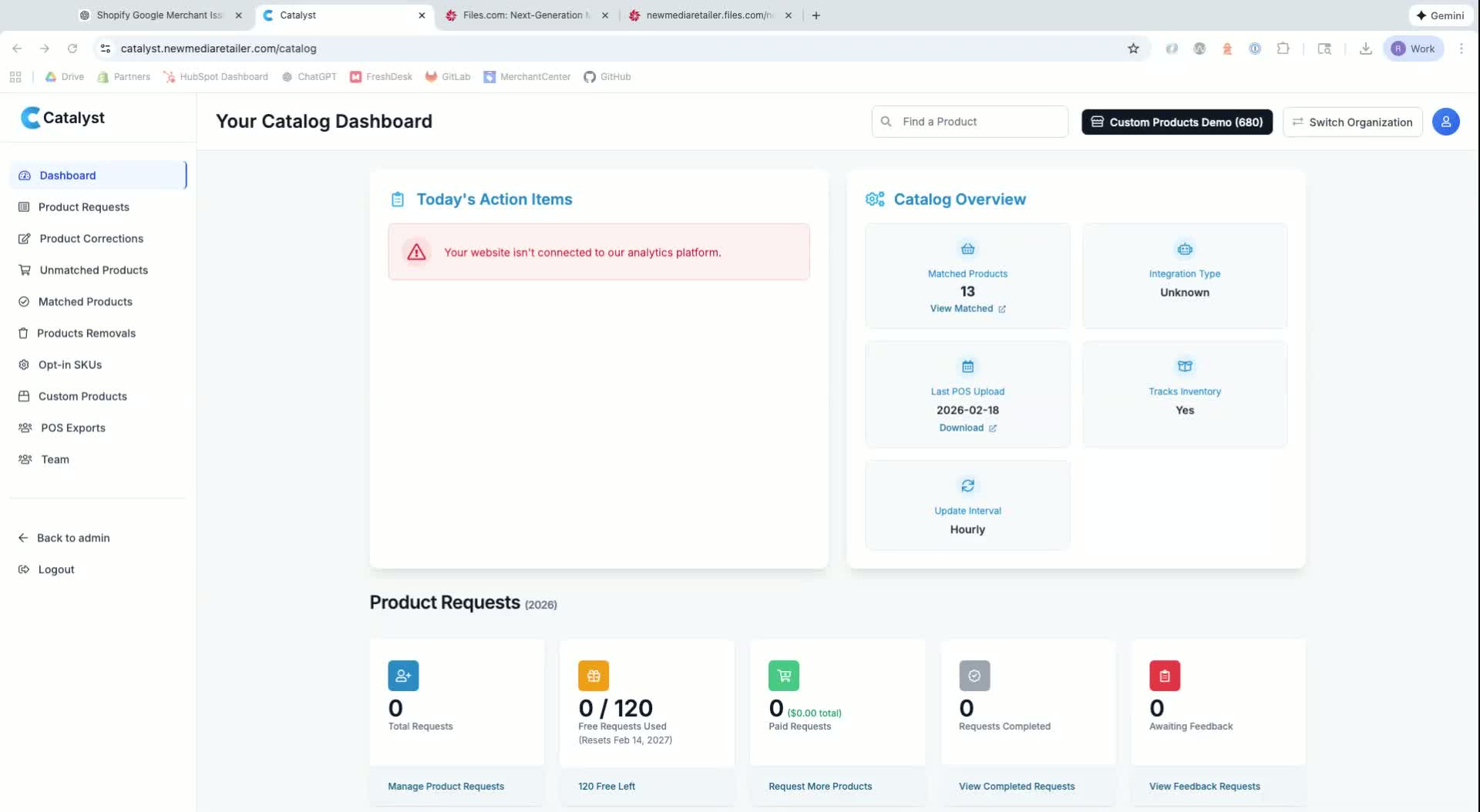
Log into the Catalyst retailer dashboard.
Navigate to the Product Request tab to view open and completed requests.
2. Submitting UPC-Based Product Requests 0:41
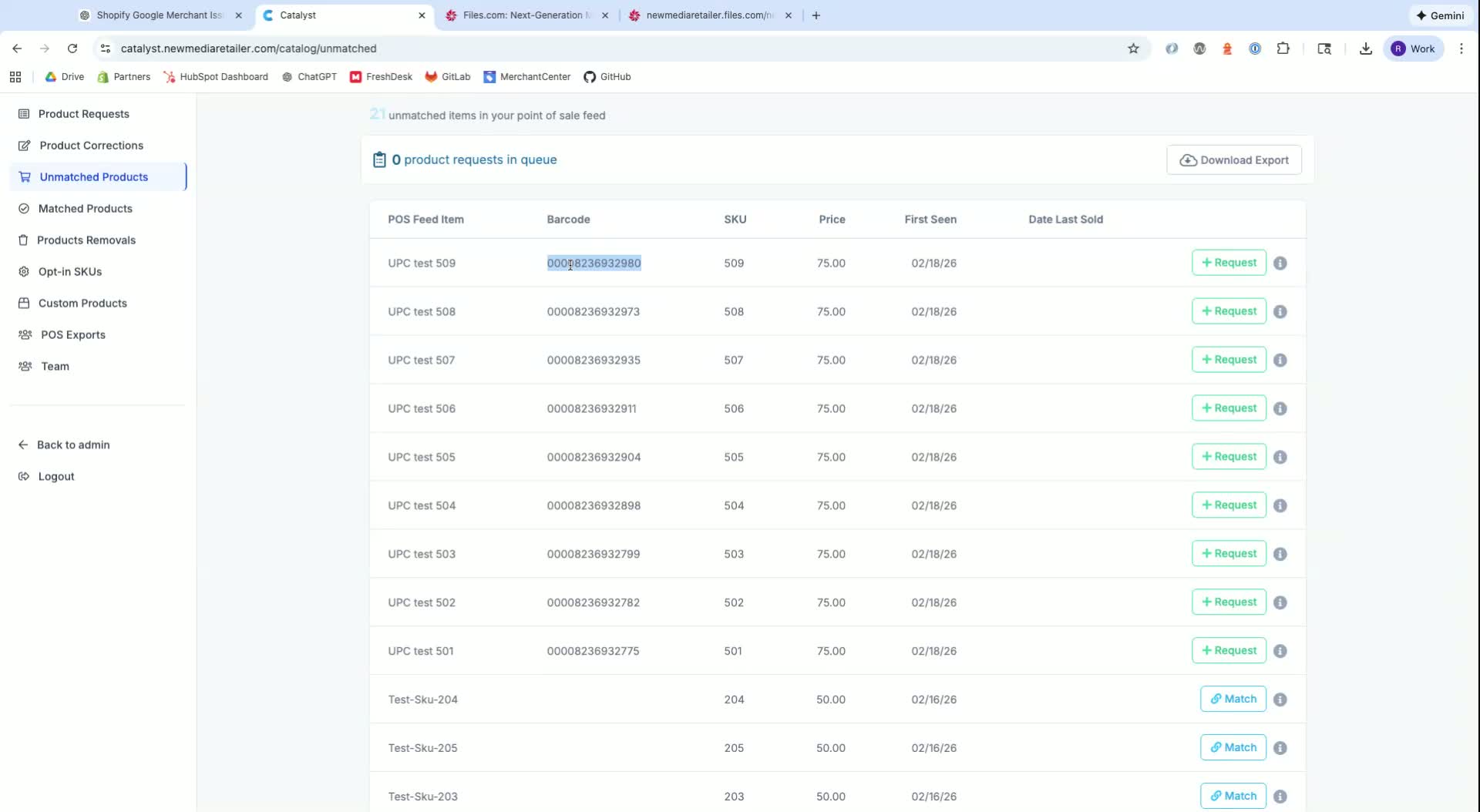
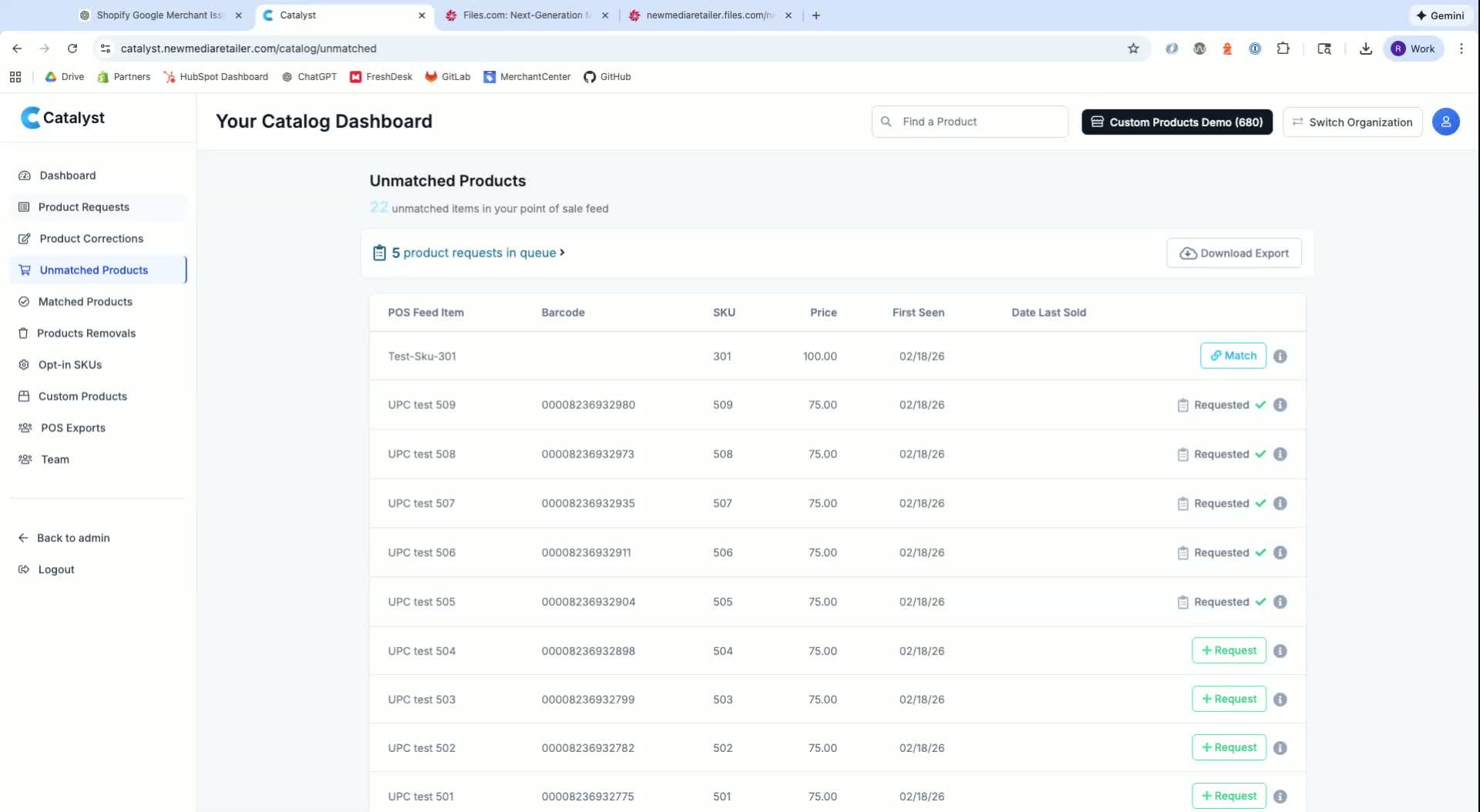
On the unmatched products list, identify products with legitimate barcodes.
Click the green request button next to the product to submit it for addition to the master catalog.
3. Understanding Request Limits and Costs 1:07
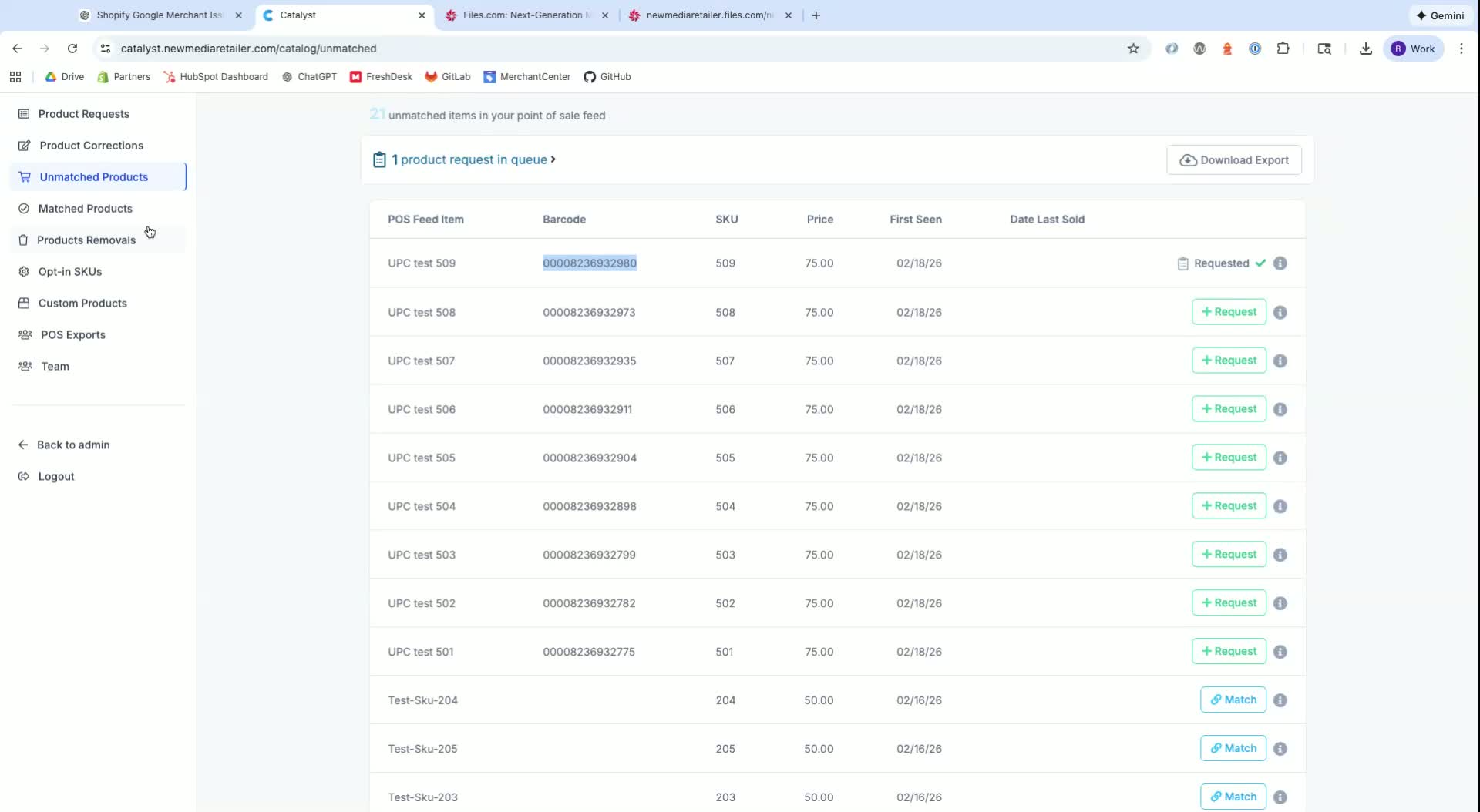
Note that you have 120 free requests per year.
After exceeding this limit, requests will cost $2 for UPC-based and $5 for custom products.
4. Searching for Products 1:45
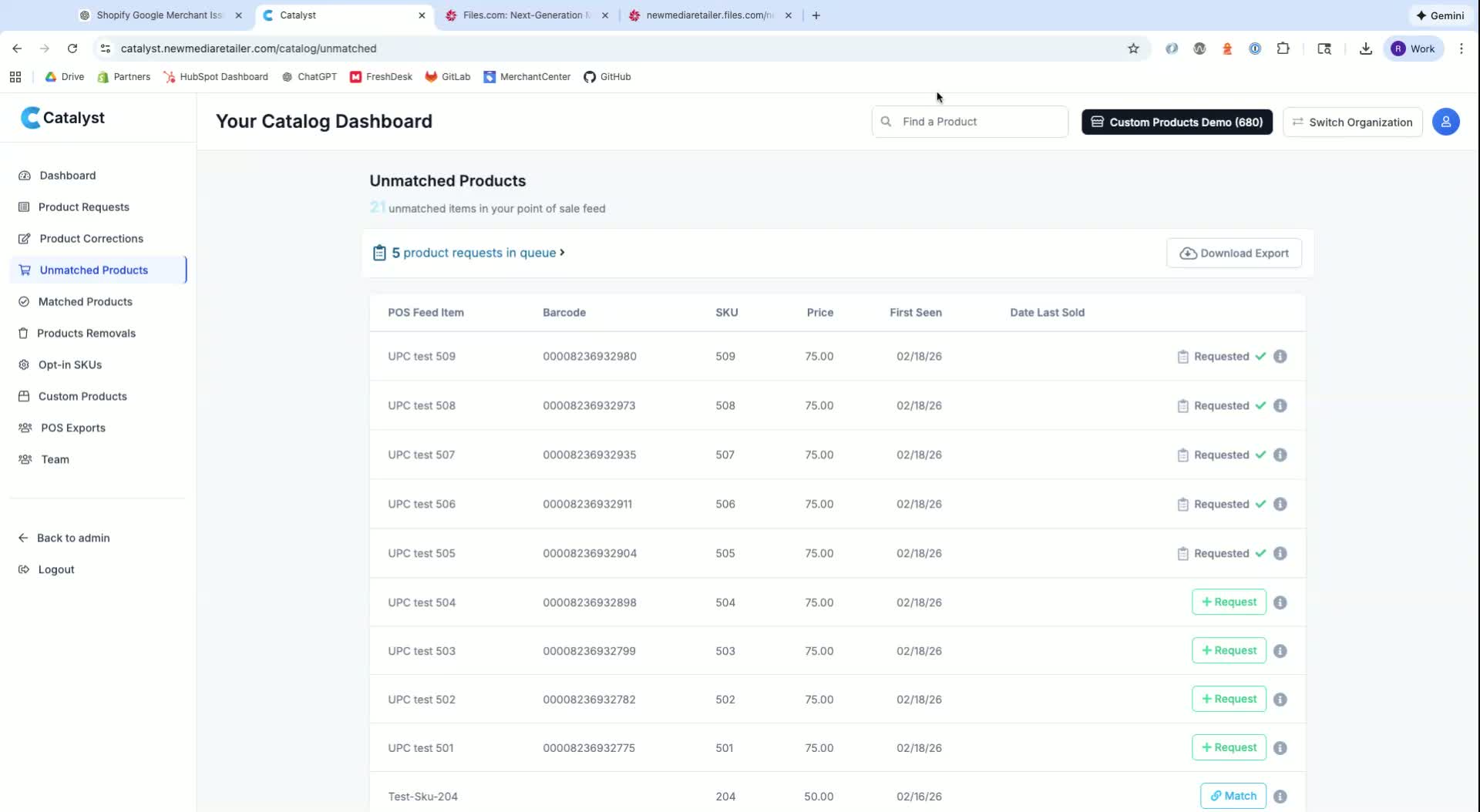
Use the search bar to find specific UPC-based products.
Click the green button to add them to the request queue.
5. Unlocking SKU-Based Products 2:41
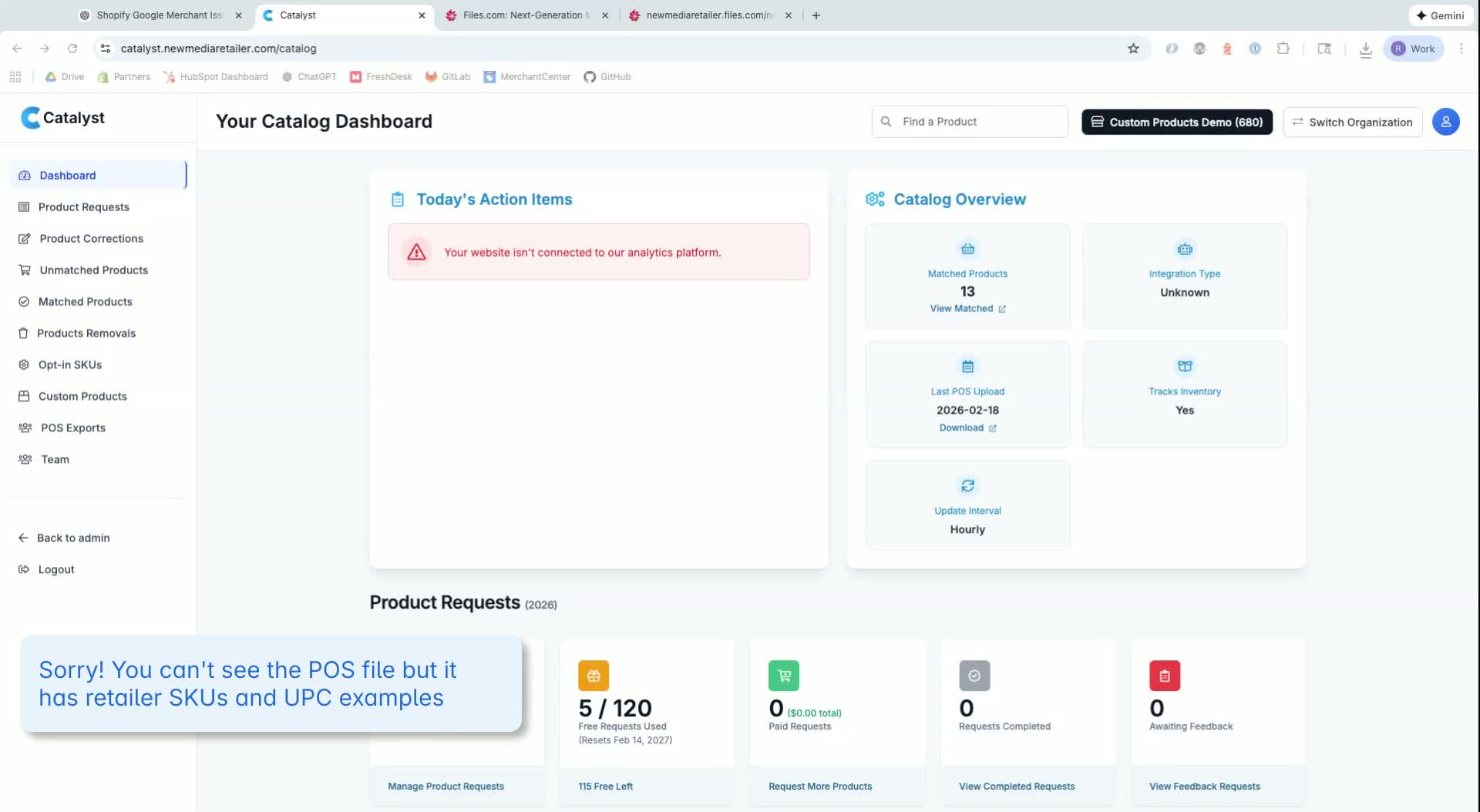
To add SKU-based products, first unlock them by submitting a list of SKUs.
Use a comma-separated list for efficiency.
6. Triggering SKU Imports 5:08
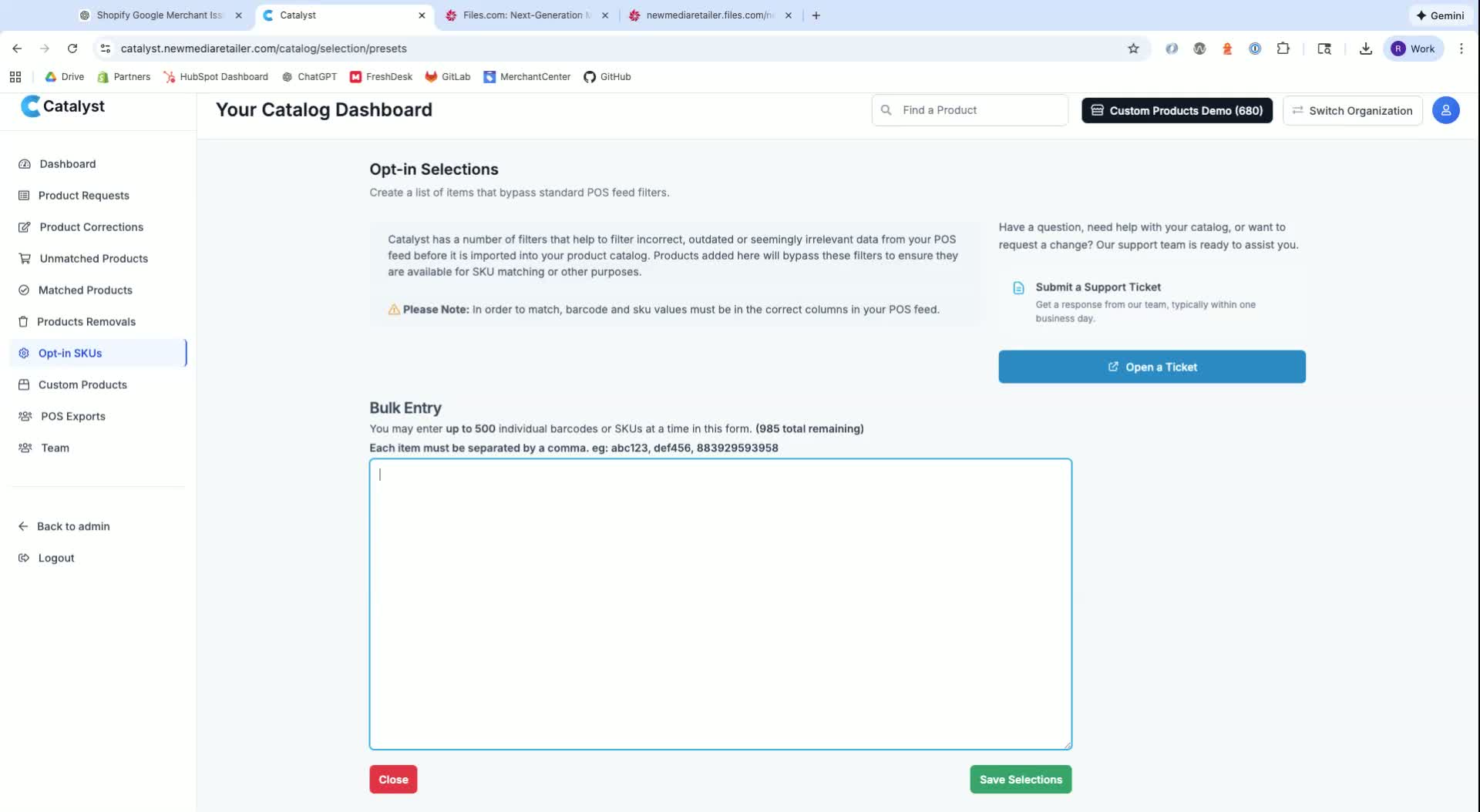
After submitting the SKU list, wait for the next import (hourly or daily).
Check the unmatched products list for newly unlocked SKUs.
7. Requesting SKU-Based Products 5:42
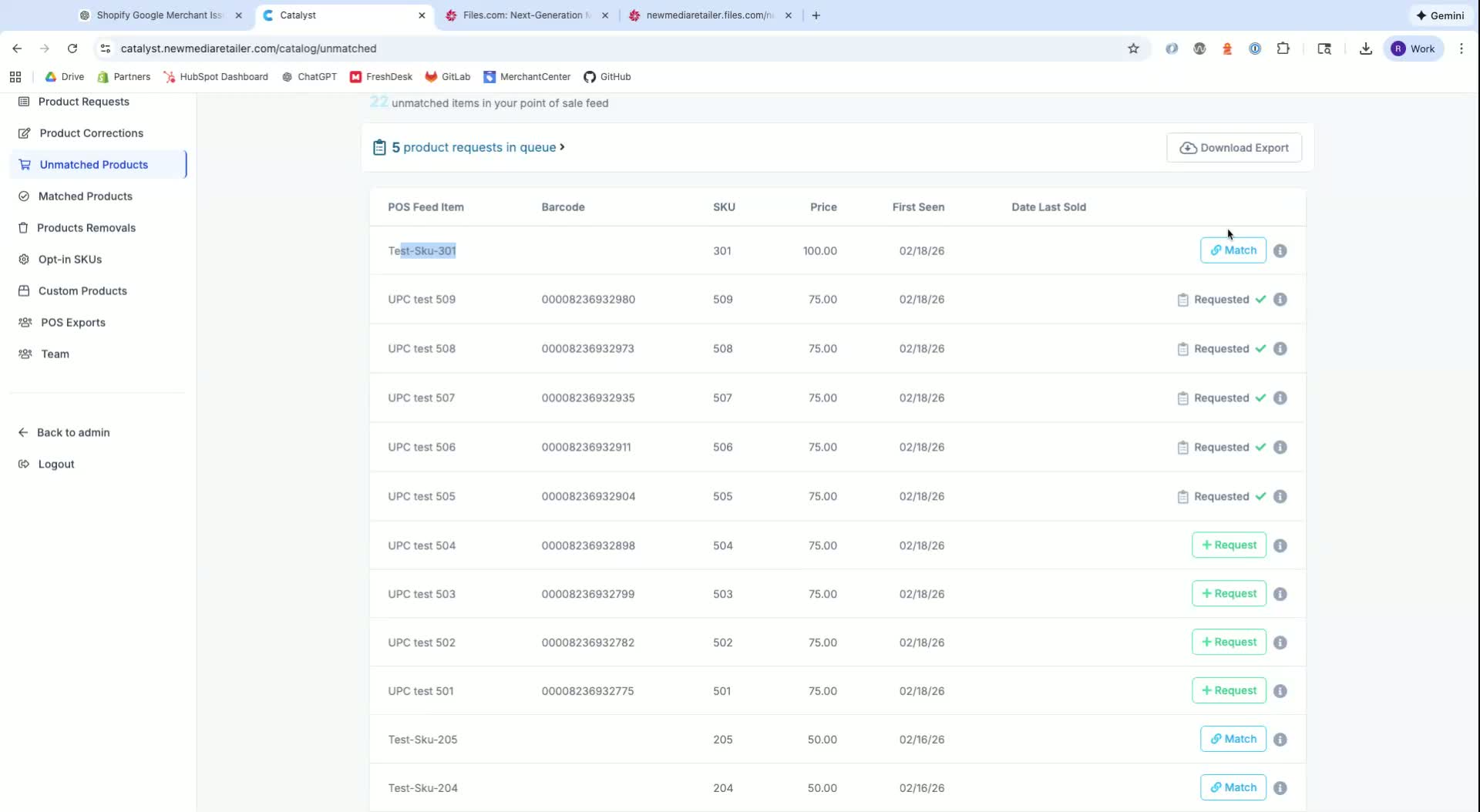
Once the SKU is unlocked, click the blue match button to request the product.
Fill out the product request form with the required information.
8. Providing Product Information 6:15
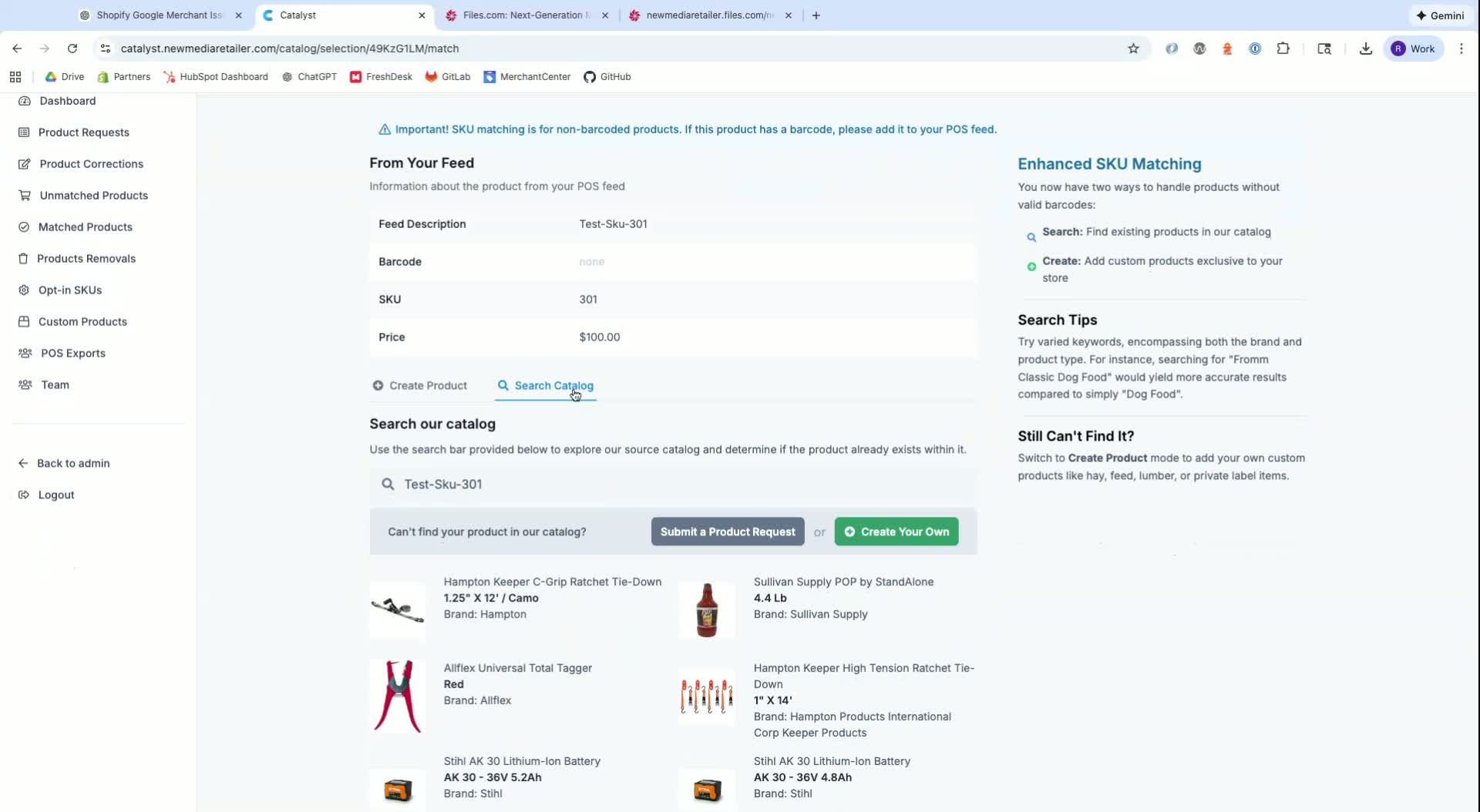
Include the following in the request form:
Brand: Consumer-facing brand name.
Product Name: Clear and descriptive.
Product Link: Direct link to the manufacturer's website for data.
9. Submitting the Product Request 7:41
After filling out the form, submit the request to add the product to the queue for processing.
Cautionary Notes
Ensure that all product data is accurate to avoid delays in processing.
Do not use copyrighted product data from other retailers without permission.
Tips for Efficiency
Prepare a list of SKUs in advance to streamline the unlocking process.
Regularly check the unmatched products list to stay updated on available products for matching.
Link to Loom
Was this article helpful?
That’s Great!
Thank you for your feedback
Sorry! We couldn't be helpful
Thank you for your feedback
Feedback sent
We appreciate your effort and will try to fix the article