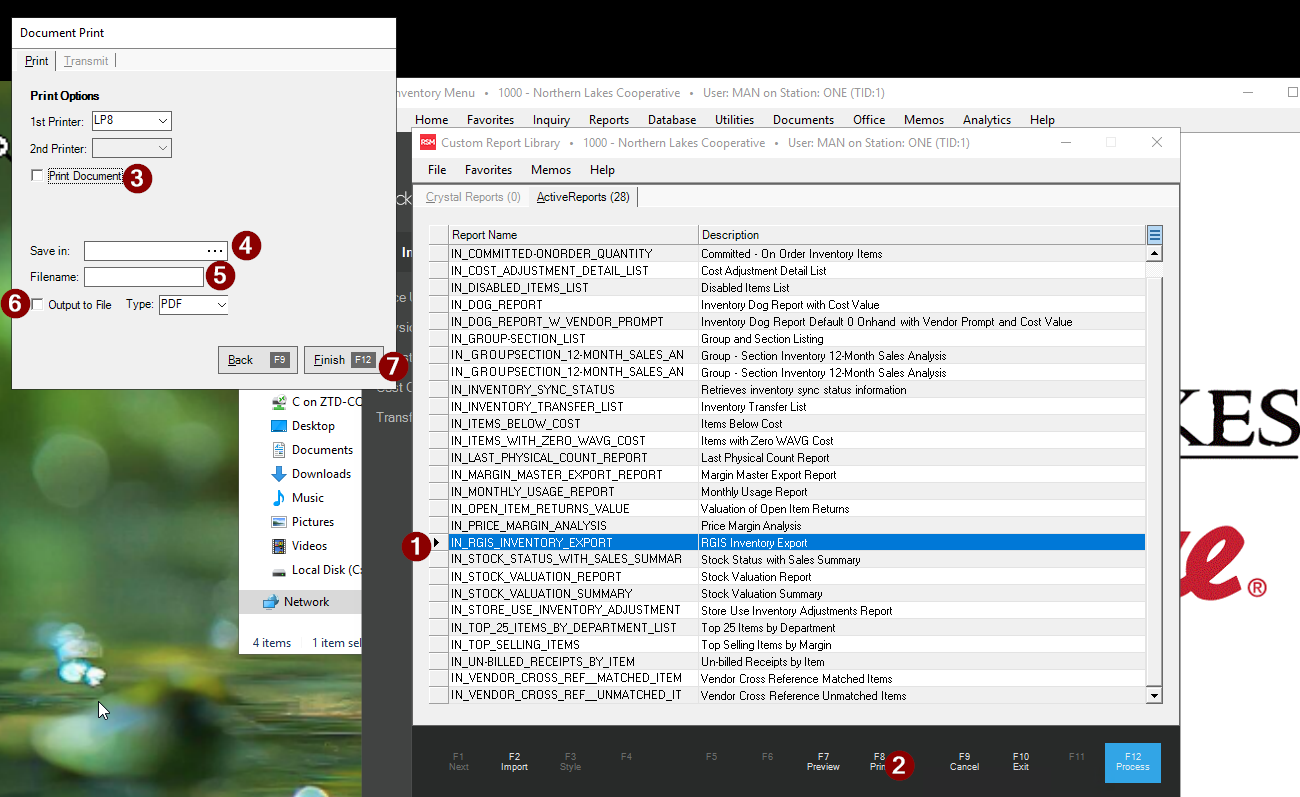
1. and 2. Set Up the Report: Open the Active Reports library and select IN_RGIS_INVENTORY_EXPORT, fill in your filters (date range, locations, etc.) and click F8 Print
3. and 6. Format Your Report: In the Print Options section of the pop-up menu, uncheck the box next to "Print Document" and check the box next to "Output to File" and select your desired File Format Type: CSV
4. and 5. Name Your Report: Click the browse (...) button next to the "Save In" field. Choose where you want the file saved (like your Desktop) and type in a File Name
7. Generate Report: Click Finish (F12) or Process
Was this article helpful?
That’s Great!
Thank you for your feedback
Sorry! We couldn't be helpful
Thank you for your feedback
Feedback sent
We appreciate your effort and will try to fix the article