Your POS export is a CSV file, and Catalyst needs to know exactly which column holds which type of data — barcodes, SKUs, pricing, inventory quantities, and so on. All data must live on one master sheet, with each data type in its own dedicated column. If your barcode column also contains SKUs, Catalyst may match to the wrong product or skip the row entirely.
At a minimum, your inventory export should include columns for:
- Barcode (UPC)
- Price
- Product Name
- QOH (Quantity on Hand) — recommended so Catalyst can skip obsolete product records
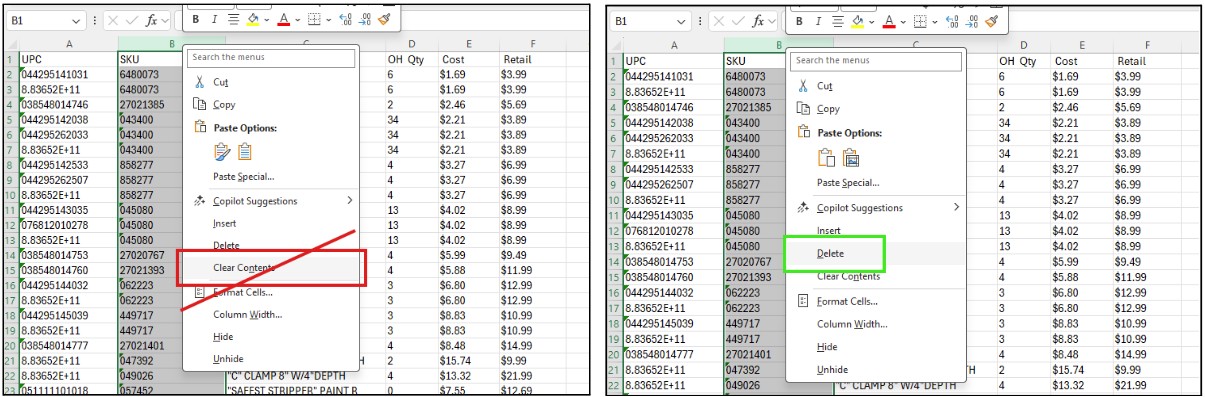
If you want to remove a column, delete the rows rather than clearing the cell contents. Cleared (blank) cells in mapped columns will throw an error in Catalyst.
Before reformatting your POS export, please submit a support ticket so our team can update your column mapping without disrupting your catalog feed.
Pricing is one of the ways Catalyst validates that product data is current. Any row without a price will be ignored entirely. Make sure your price column is populated for every product you want to appear in your catalog.
Catalyst needs at least one identifier per row to match a product. It always checks the UPC column first. For best results, UPCs should be 12 to 14 digits long with no letters or symbols.
Catalyst will skip a UPC that is:
- Blank
- All zeros
- Six 9s in a row (e.g.,
999999)
If a row has one of those UPC conditions but also contains a SKU, Catalyst can still process the row using the SKU instead — as long as Catalyst has been configured to look for that SKU.
Excel sometimes converts long UPC numbers into scientific notation (e.g., 7.56637E+11). This will cause your upload to fail. See our article Prevent Excel from Formatting UPCs in Scientific Notation for step-by-step instructions.
For accurate, up-to-date inventory counts in your online catalog, Catalyst needs data delivered via an hourly, automatic integration with your POS system. Manual uploads or daily automated feeds are supported, but keeping quantities in sync is very difficult without an hourly feed.
If you operate more than one store location, your POS export must include a location identifier in each row so Catalyst can link product data to the correct Shopify store location.
- Catalyst must have a location identifier for every Shopify location.
- Locations you don't want to push data for must be removed from Shopify.
- Each UPC should appear in as many rows as you have locations. (2 locations = 2 rows per UPC.)
- Prices across locations should match. If they differ, Catalyst will automatically apply the highest price to all locations.
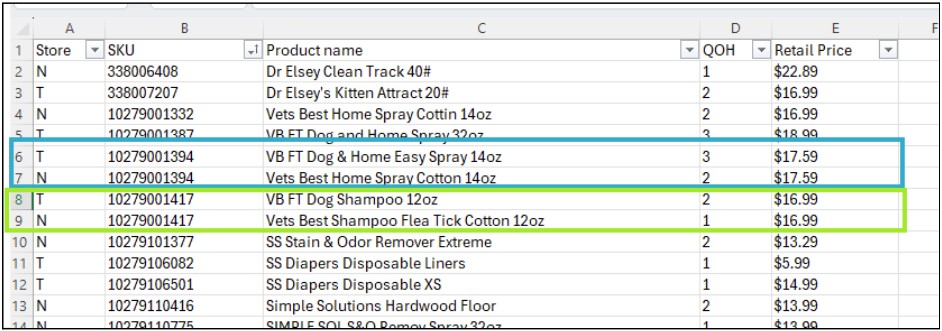
A. Use Clean, Properly Formatted UPCs
Catalyst is driven primarily by UPC, so clean formatting leads to more accurate product matches. The table below shows which UPC formats work and which do not:
| UPC Example | Length | Status | Notes |
|---|---|---|---|
| 645194778030 | 12 | ✓ Works | Standard UPC length. Preferred format. |
| 91053551441 | 11 | ✓ Works* | Leading 0 truncated; Catalyst can still match it if the full UPC is in our source catalog. |
| 5013554144729 | 13 | ✓ Works | Extra digit added to the front. Also valid. |
| 2226615620 | 10 | ✓ Works* | Only with special configuration. Cannot be mixed with 12-digit UPCs in the same export. |
| 448623001 | 9 | ✗ Invalid | 9 digits or fewer are marked invalid. |
| 07723154068298 | 14 | ✗ Invalid | 14 digits or more are marked invalid. |
| 8A45E10043Y2 | 12 | ✗ Invalid | Letters make a UPC invalid. |
* Requires Catalyst to be configured for that UPC length. A matching strategy should be decided during initial setup.
B. Keep UPCs and SKUs Unique
Catalyst groups UPCs and SKUs together when processing large data sets. If the same UPC or SKU is reused across products that aren't related, those products may get incorrectly linked in Catalyst, causing errors in your catalog and reports. Make sure every UPC and SKU uniquely identifies a single product.
C. Include a Date of Last Receipt or Sale
Including a date of last receipt or date of last sale column in your export helps Catalyst determine when a product should be removed from your online catalog. Without this, there is no automated way for Catalyst to know a product is no longer carried. You can set the removal timeframe directly in Catalyst.
D. Follow These Header Formatting Rules
Headers must be unique
Duplicate column headers will cause Catalyst to stop processing the file. For example, having two columns both named SKU will throw an error. Every column header must be different.
Headers cannot be blank
Blank headers are treated as duplicates of each other. This includes empty "spacer" columns. If your export contains columns with no header, Catalyst will fail. Remove or name any empty columns before uploading.
Headers must be in row 1
Some POS systems add metadata rows at the top of the export before the actual column headers. Those extra rows must be deleted so that your column headers appear in row 1 and product data begins in row 2.
Headers can be named anything — before the first import
You can name columns whatever you like before your initial setup. However, names should clearly describe their contents so our team can configure the mapping correctly. For example, a price column could be called Price, Retail, or Prc1 — something that makes its purpose obvious at a glance.
Headers must stay the same between exports
Once Catalyst is configured, column headers must remain consistent in every subsequent export. Adding new columns or renaming existing ones will cause imports to fail. If you need to make a change, contact your account representative first so the mapping can be updated.
If you have questions about formatting your POS export or run into an import error, submit a support ticket and our team will help you get things sorted out.
Was this article helpful?
That’s Great!
Thank you for your feedback
Sorry! We couldn't be helpful
Thank you for your feedback
Feedback sent
We appreciate your effort and will try to fix the article