Submitting a Product Correction
Objective
This SOP outlines the steps to submit a product correction when a variant needs to be moved from one product to another.
Key Steps
Step 1: Access Matched Products 0:10
Log into the test account.
Navigate to the 'Matched Products' section.
Step 2: Select the Variant to Move 0:24
Identify the variant you want to move (e.g., the three-piece variant).
Click on the variant's details.
Step 3: Choose the Move Variant Option 0:36
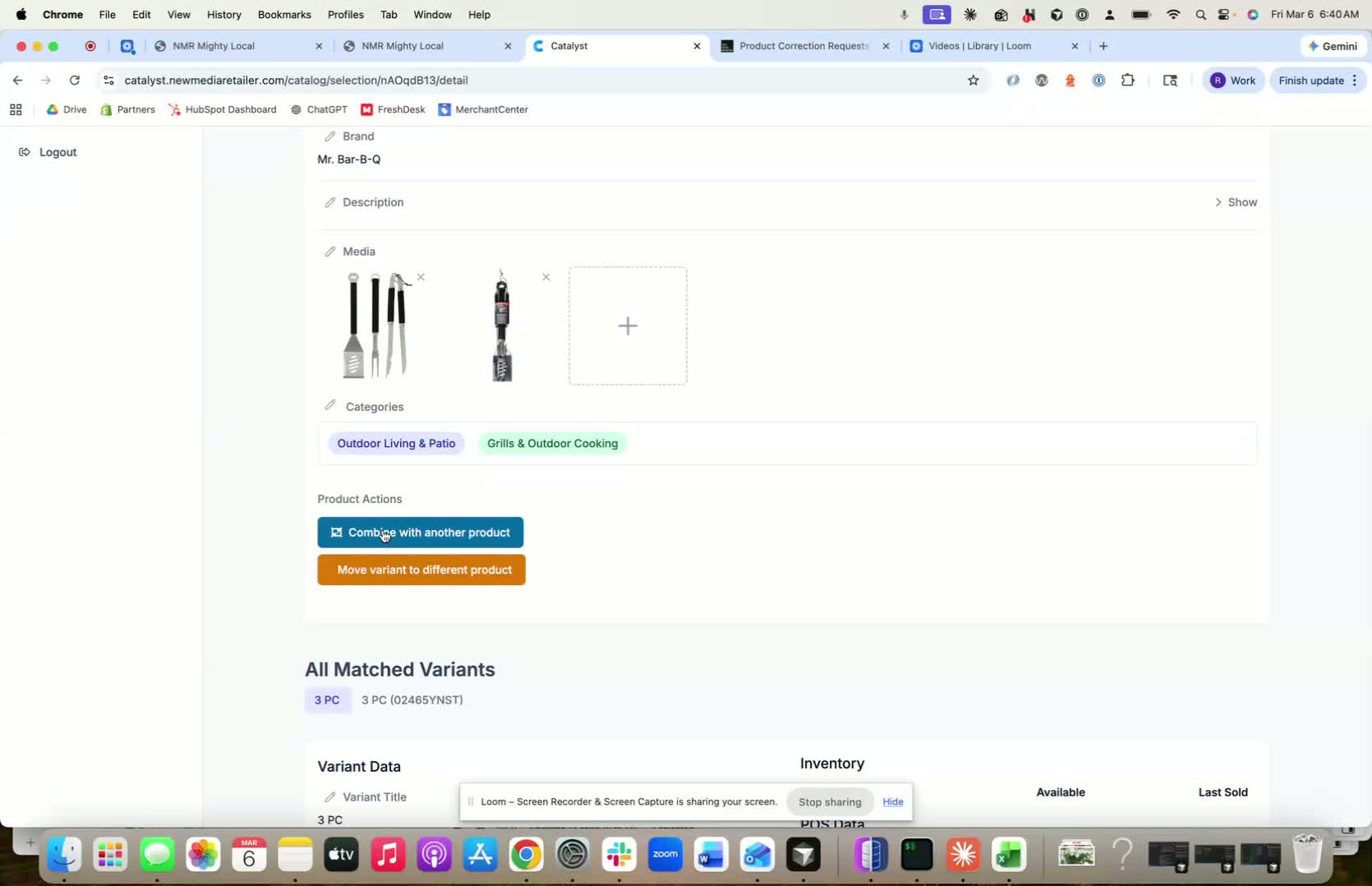
Scroll down to find the 'Move Variant' button.
Select 'Move Variant to a different product'.
Step 4: Search for the New Product 1:05
Keep the option on 'Move Variant to different product'.
Click on the variant (e.g., 3-Piece).
Use the search function to find the new product you want to move the variant to.
Step 5: Confirm the Move 1:21
Ensure that the correct UPC from the old product is being moved to the new product.
This action will impact other retailers, so double-check the details.
Step 6: Add Context (if necessary) 1:35
If additional context is needed for the production team, provide it in the designated area.
Step 7: Submit the Correction 1:44
Click on the 'Submit Correction' button to finalize the process.
Link to Loom
Was this article helpful?
That’s Great!
Thank you for your feedback
Sorry! We couldn't be helpful
Thank you for your feedback
Feedback sent
We appreciate your effort and will try to fix the article